Warehouses
Where to find itInventory → Settings → Configuration → Warehouses
Warehouses are the places where stock is kept. Every stock transaction – Goods In, Goods Out, Transfer, Adjustment and others – is recorded against a warehouse. One warehouse can be marked as the default (main) warehouse, which is selected automatically in transactions.
You can manage Warehouses from the path: Inventory → Settings → Configuration → Warehouses
List / View Warehouses
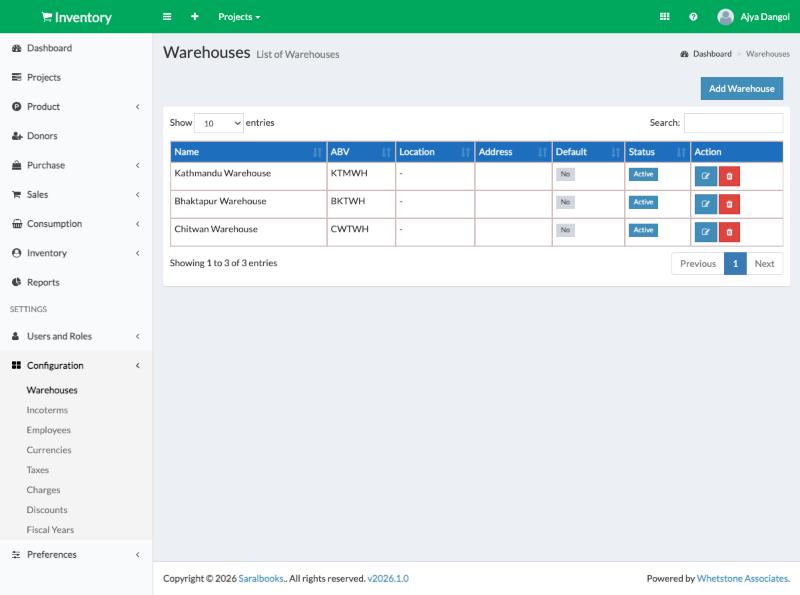
The page shows all warehouses with their Name, Abbreviation (ABV), Location, Address, Default and Status. From this page you can:
- View all warehouses and see which one is the default.
- See which warehouses are Active or Inactive.
- Search by name or abbreviation.
- Sort by any column and change how many rows are shown.
1. Application Settings
- Inventory → Settings → Preferences → Application Setting → Warehouse Hierarchy: keep it No (default). This guide covers warehouses without hierarchy.
- Related setting (Administration, admin users only): Work Location. The Location list in the warehouse form shows the Work Locations created there.
Permissions
Set in Inventory → Settings → Users and Roles → Roles → Edit Role → Warehouse. Tick the boxes the role needs, then click Update.
| Permission | What the user can do |
|---|---|
| View | See the Warehouses list |
| Create | See the Add Warehouse button and add a warehouse |
| Edit | See the Edit (pencil) button and change a warehouse |
| Delete | See the red Delete button and delete a warehouse that has no transactions |
| Full Access | Ticks View, Create, Edit and Delete together |
2. Fields
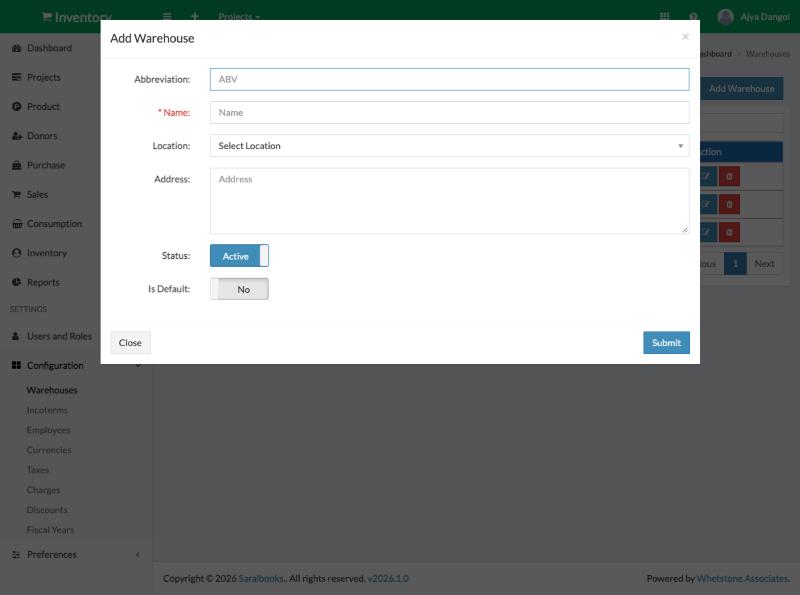
When adding or editing a Warehouse, the following fields are available.
| Field Name | Description | Required | Remarks |
|---|---|---|---|
| Abbreviation | A short code for the warehouse, e.g. KTMWH. | Yes | • Up to 5 characters. • Must be unique. |
| Name | The full name of the warehouse, e.g. Kathmandu Warehouse. | Yes | • Must be unique – capital and small letters count as the same. |
| Location | The work location of the warehouse. | No | • Pick from the Work Locations created in Administration → Work Location. • The list is empty until work locations are added. |
| Address | The street address of the warehouse. | No | • Free text. |
| Status | Active or Inactive. | Yes (default: Active) | • Set Inactive to stop using a warehouse that already has transactions. • Inactive warehouses are not shown in transactions. |
| Is Default | Marks the main warehouse. | Yes (default: No) | • Only one warehouse can be default. Setting a new one changes the old one to No. • The default warehouse is selected automatically in Goods In, Goods Out and other transactions. |
3. Create
- Go to Inventory → Settings → Configuration → Warehouses.
- Click Add Warehouse.
- Enter the Abbreviation, e.g. PKRWH.
- Enter the Name, e.g. Pokhara Warehouse.
- Pick the Location and enter the Address (optional).
- Set Status and Is Default.
- Click Submit.
Messages you may see
| When | Message |
|---|---|
| Name is empty | The name field is required. |
| Abbreviation is empty | The abbreviation field is required. |
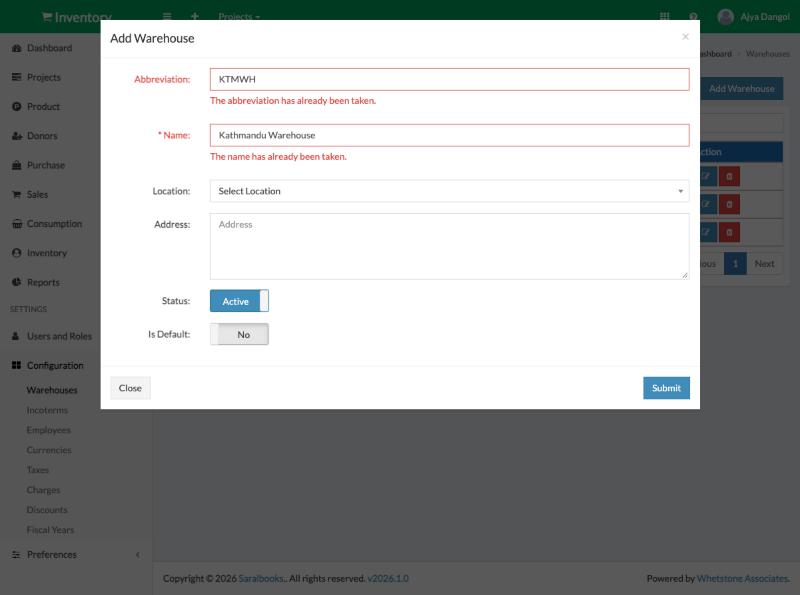
| Name already used | The name has already been taken. |
| Abbreviation already used | The abbreviation has already been taken. |
4. Edit
- Go to Inventory → Settings → Configuration → Warehouses.
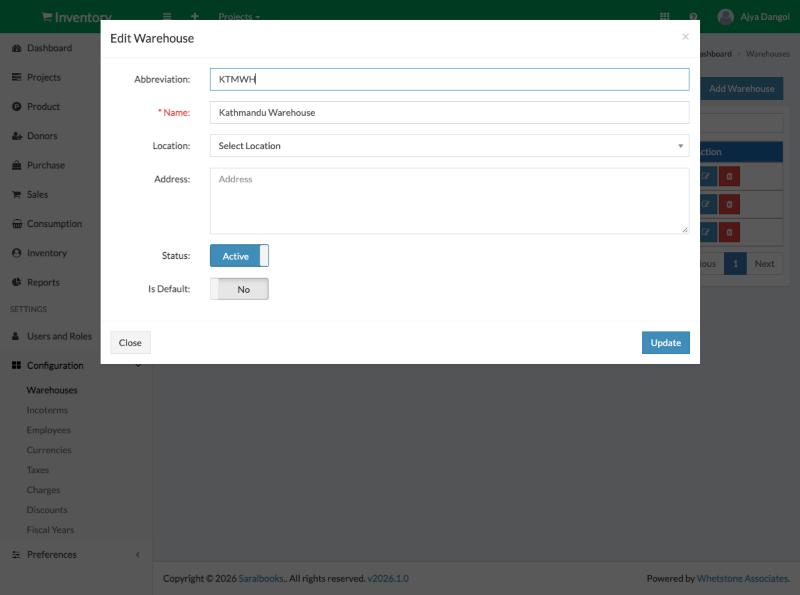
- Click the Edit (pencil) button on the warehouse.
- The form opens with the title Edit Warehouse.
- Change the fields you need.
- Click Update.
- The same rules as Create apply: Name and Abbreviation must be unique.
- To stop using a warehouse that has transactions, set Status to Inactive instead of deleting it.
5. Delete
- Go to Inventory → Settings → Configuration → Warehouses.
- Find the warehouse you want to remove.
- Click the red Delete button.
- Confirm by clicking OK on the confirmation.
- A warehouse that has any transactions cannot be deleted. Set its Status to Inactive instead.
6. Upload
- Not available. Warehouses are added one at a time with Add Warehouse.
7. Notes
- Abbreviation and Name are both required, and no two warehouses can have the same Name or Abbreviation.
- Default: mark your main warehouse as default so it is selected automatically in transactions. Only one warehouse can be default.
- Inactive: use Inactive for warehouses you no longer use; they are hidden in transactions and cannot be deleted once used.
- Location: add Work Locations in Administration first if the Location list is empty.
- NGO/INGO and Corporate: Warehouses works the same in both.
- Create your warehouses and set the default before entering opening stock or any stock transaction.