Fiscal Years
Where to find itInventory → Settings → Configuration → Fiscal Years
Fiscal Years define the financial reporting periods for the organisation. All transactions, budgets and reports are grouped within a fiscal year. The system requires at least one fiscal year to be created and marked as current before transactions can be recorded.
You can manage Fiscal Years from the path: Inventory → Settings → Configuration → Fiscal Years
List / View Fiscal Years
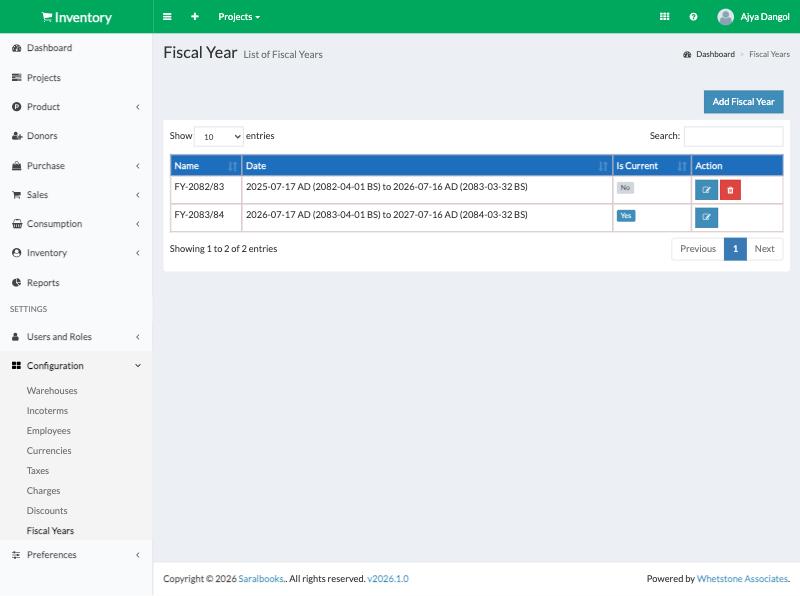
The page shows all fiscal years with their dates (AD, with BS in brackets when BS dates are turned on) and whether each one is current. From this page you can:
- View all configured fiscal years.
- See which fiscal year is current (Is Current = Yes).
- Search for a fiscal year – type in Search and press Enter.
- Sort by any column and change how many rows are shown.
1. Application Settings
- There are no Fiscal Year settings in Inventory → Settings → Preferences → Application Setting.
- Related setting (Administration, admin users only): Organization Settings → Date and Time → BS Date Formats. When it is on, BS dates and BS date fields are shown next to AD everywhere. When it is off, only AD dates are shown.
Permissions
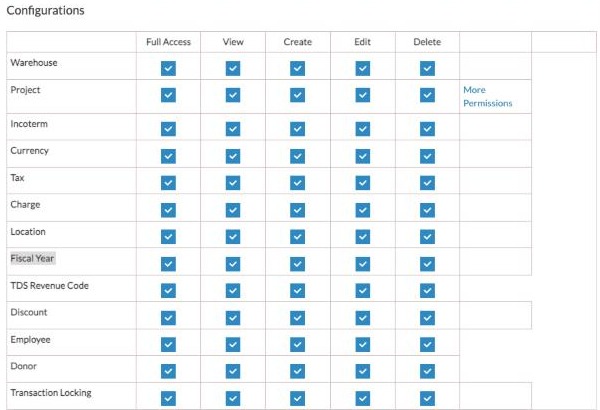
Set in Inventory → Settings → Users and Roles → Roles → Edit Role → Configurations → Fiscal Year. Tick the boxes the role needs, then click Update.
| Permission | What the user can do |
|---|---|
| View | See the Fiscal Years list |
| Create | See the Add Fiscal Year button and add a new year |
| Edit | See the Edit (pencil) button and change a year |
| Delete | See the red Delete button and delete a year that has no transactions |
| Full Access | Ticks View, Create, Edit and Delete together |
2. Fields
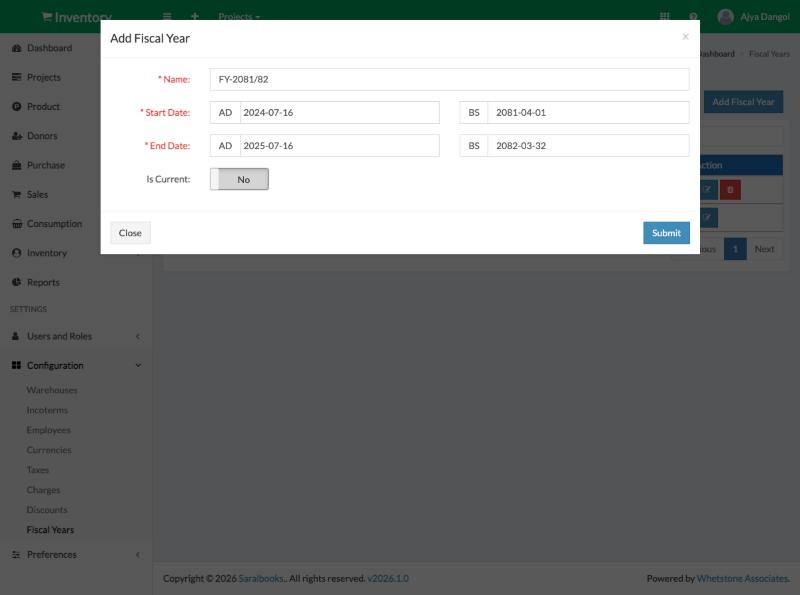
When adding or editing a Fiscal Year, the following fields are available.
| Field Name | Description | Required | Remarks |
|---|---|---|---|
| Name | The name of the fiscal year, e.g. FY-2081/82. | Yes | • Format FY-YYYY/YY – only numbers can be typed. • Must be unique. • Must match the years of the dates. |
| Start Date | The first day of the fiscal year. Pick it in AD or BS (BS only when BS dates are on) – the other date fills in automatically. | Yes | • Cannot overlap another fiscal year’s date range. • Must be the day after the previous fiscal year ends (no gaps). |
| End Date | The last day of the fiscal year, in AD or BS (BS only when BS dates are on). | Yes | • Must be after the Start Date. • Cannot overlap another fiscal year’s date range. |
| Is Current | Marks this fiscal year as the active fiscal year. | Yes (default: Yes) | • Only one fiscal year can be current at a time. • Setting a year to Yes changes the previous current year to No automatically. • Changing this updates the system’s active reporting period. |
3. Create
- Go to Inventory → Settings → Configuration → Fiscal Years.
- Click Add Fiscal Year.
- Enter the Name, e.g. FY-2084/85.
- Pick the Start Date in the AD or BS calendar.
- Pick the End Date in the AD or BS calendar.
- Set Is Current to Yes or No.
- Click Submit.
Messages you may see
| When | Message |
|---|---|
| Name is empty | The name field is required. |
| Name is incomplete (e.g. FY-208) | The name field must follow the format FY-YYYY/YY (e.g., FY-2078/79). |
| Name already used | The name has already been taken. |
| Start or End Date is empty | The start date field is required. / The end date field is required. |
| End Date is before (or same as) Start Date | The start date must be a date before |
| Dates overlap another fiscal year | Fiscal year overlaps with existing fiscal year. |
| Dates leave a gap after the previous year | Some dates are missing between fiscal years. |
4. Edit
- Go to Inventory → Settings → Configuration → Fiscal Years.
- Click the Edit (pencil) button on the fiscal year.
- Wait for the form to load – the title changes to Edit Fiscal Year.
- Change the fields you need.
- Click Update.
- A warning appears. Click Update Anyway to save, or Cancel to go back.
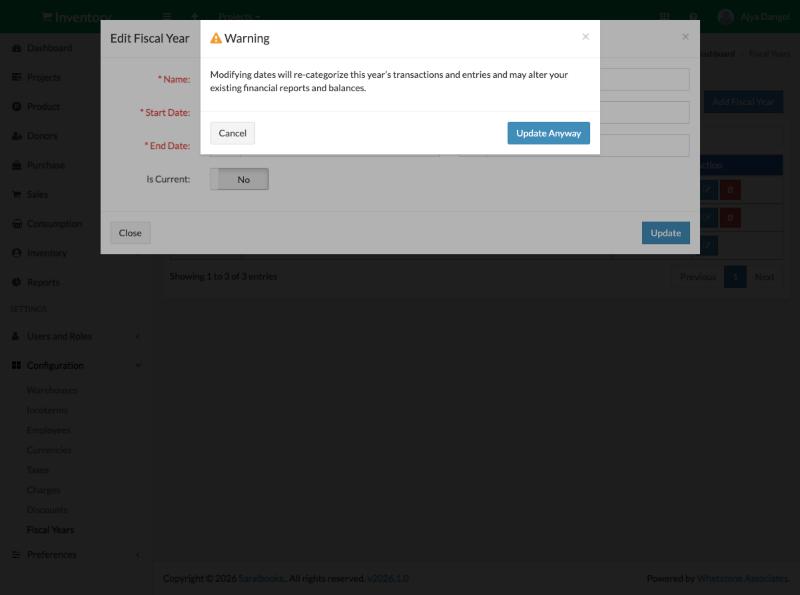
- Changing the Start Date or End Date of a fiscal year that already has transactions may affect report calculations and opening balance carry-forward. Take care.
- The same rules as Create apply: no overlap, no gaps, unique name.
5. Delete
- Go to Inventory → Settings → Configuration → Fiscal Years.
- Find the fiscal year you want to remove.
- Click the red Delete button.
- Confirm by clicking OK on “Are you sure you want to delete?”.
- A fiscal year cannot be deleted if it has any transactions recorded within its date range.
- The current fiscal year cannot be deleted – it has no Delete button. Make another year current first.
6. Upload
- Not available. Fiscal years are added one at a time with Add Fiscal Year.
7. Notes
- No gaps: each fiscal year must start the day after the previous one ends. Add years oldest first.
- No overlaps: two fiscal years cannot share any date.
- One current year: only one fiscal year can be current at a time. Making another year current switches the old one to No.
- Name and dates: use the name that matches the dates, e.g. FY-2084/85 for 2084-04-01 to 2085-03-31 BS.
- AD and BS: pick a date in either calendar – the other fills in automatically. BS dates appear only when BS Date Formats is on in Organization Settings.
- Search: type in Search and press Enter. Tip: start with # to search for text exactly as typed, e.g. #FY-2084.
- NGO/INGO and Corporate: Fiscal Years works the same in both. Only the BS dates differ – they are shown only when BS Date Formats is on.
- Fiscal years are also used in Accounts, Payroll, Invoice and Fixed Assets.
- Set up the previous fiscal years and the current one before entering opening balances or transactions.