Measurement Units
Where to find itInventory → Product → Measurement Units
Measurement Units define the standard units used to quantify products in purchase and sales transactions. Each unit has an abbreviation and a full name, and is referenced when creating Products, Purchase Orders, Bills, Invoices, and other product-based transactions.
Measurement Units are shared by the Accounts and Inventory modules.
You can manage Measurement Units from the path: Inventory → Product → Measurement Units
List / View Measurement Units
The system displays all existing Measurement Units with their abbreviations (ABV) and names. From this page you can:
- View all configured Measurement Units – the newest is shown at the top.
- Search for a specific unit using the search option.
- Sort by any column and change how many rows are shown.
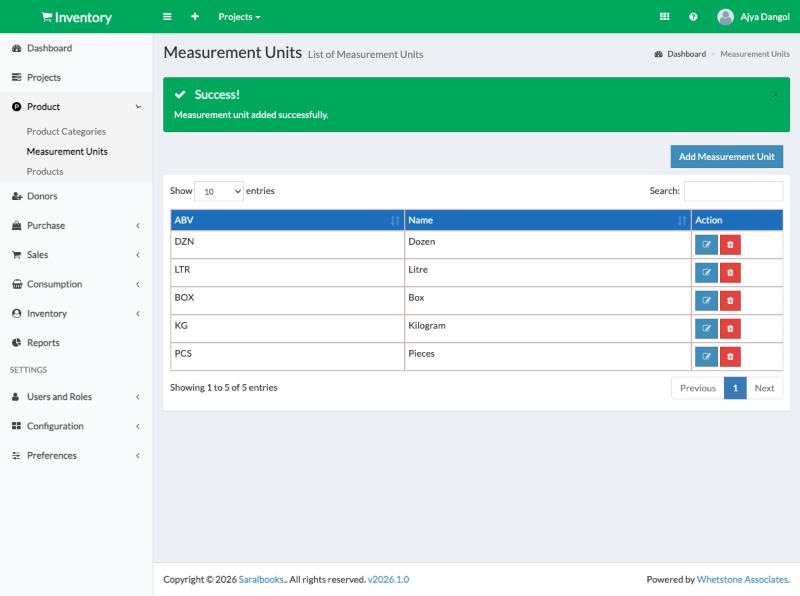
1. Application Settings
- Measurement Units appear under the Product menu only when Product is active in Inventory → Settings → Preferences → Application Setting.
Permissions
Set in Inventory → Settings → Users and Roles → Roles → Edit Role → Product → Unit. Tick the boxes the role needs, then click Update.
| Permission | What the user can do |
|---|---|
| View | See the Measurement Units list |
| Create | See the Add Measurement Unit button and add a unit |
| Edit | See the Edit (pencil) button and change a unit |
| Delete | See the red Delete button and delete a unit that is not used |
| Full Access | Ticks View, Create, Edit and Delete together |
2. Fields
When adding or editing a Measurement Unit, the following fields are available.
| Field Name | Description | Required | Remarks |
|---|---|---|---|
| Abbreviation | The short form of the measurement unit (e.g., kg, pcs, ltr, m, box). | Yes | • Must be unique. • Up to 5 characters. |
| Name | The full name of the measurement unit (e.g., Kilogram, Pieces, Litre, Metre, Box). | Yes | • Must be unique. |
Capital and small letters count as the same – “pcs” is the same as “PCS”.
3. Create
- Go to Inventory → Product → Measurement Units.
- Click Add Measurement Unit.
- Enter the Abbreviation and Name.
- Click Submit.
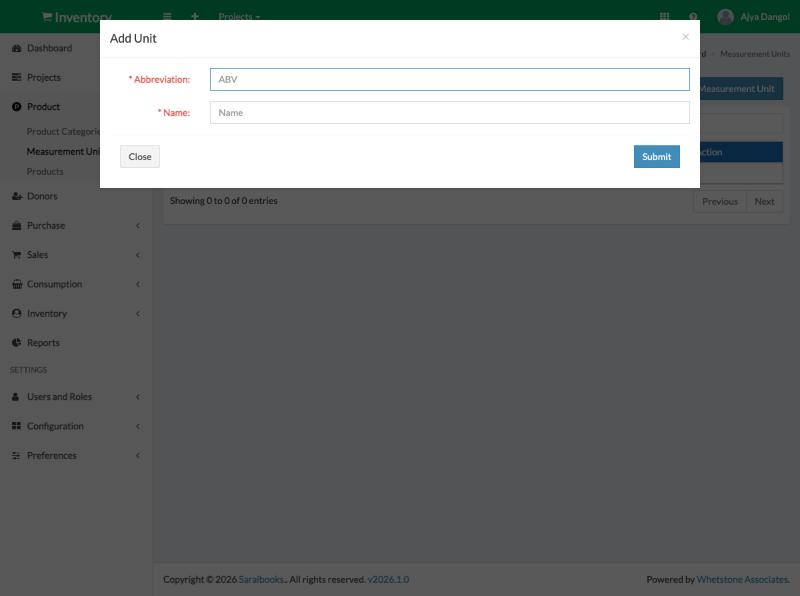
Messages you may see
| When | Message |
|---|---|
| Abbreviation is empty | The abbreviation field is required. |
| Name is empty | The name field is required. |
| Abbreviation already used | The abbreviation has already been taken. |
| Name already used | The name has already been taken. |
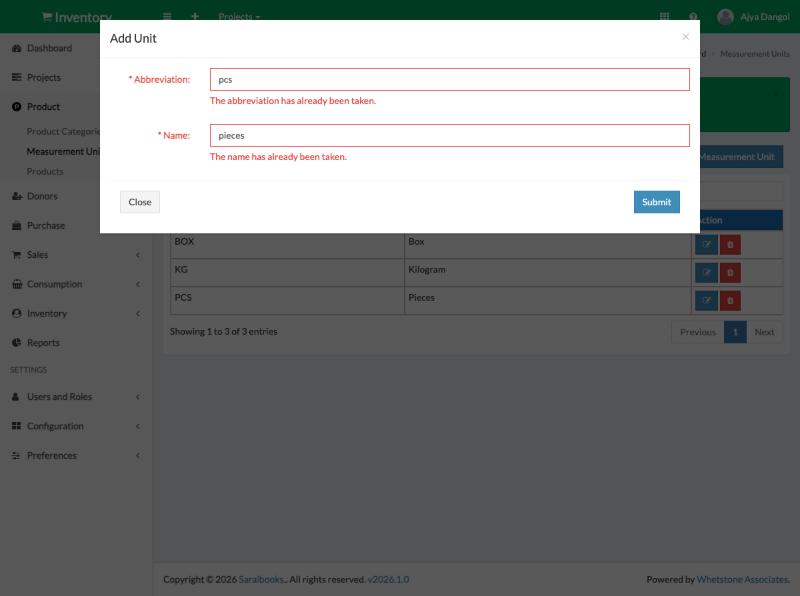
4. Edit
- Go to Inventory → Product → Measurement Units.
- Click the Edit (pencil) button on the unit you want to update.
- Modify the required fields.
- Click Update.
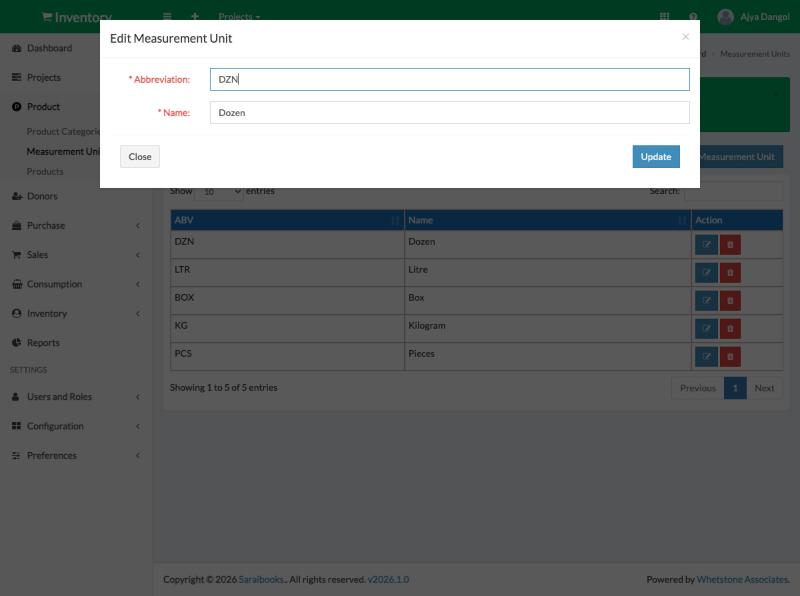
5. Delete
- Go to Inventory → Product → Measurement Units.
- Find the unit you want to remove.
- Click the red Delete button.
- Confirm by clicking OK on “Are you sure you want to delete?”.
- A Measurement Unit cannot be deleted if it has one or more Products assigned to it.
6. Upload
- Not available. Units are added one at a time with Add Measurement Unit.
7. Notes
- Create the units you need before adding Products.
- Use short, common abbreviations (PCS, KG, LTR, BOX) so they are easy to read on documents.
- NGO/INGO and Corporate: Measurement Units works the same in both.