Taxes
Where to find itAccounts → Configuration → Taxes
Taxes define the tax rules applied to purchase and sales transactions. Each tax entry specifies the tax type, rate, and the account to which the tax amount is posted. The system supports individual taxes, compound taxes (tax-on-tax), and grouped taxes (multiple taxes bundled as one selection).
Taxes are shared by the Accounts and Inventory modules – a tax added here is also available in Inventory.
You can manage Taxes from the path: Accounts → Configuration → Taxes
List / View Taxes
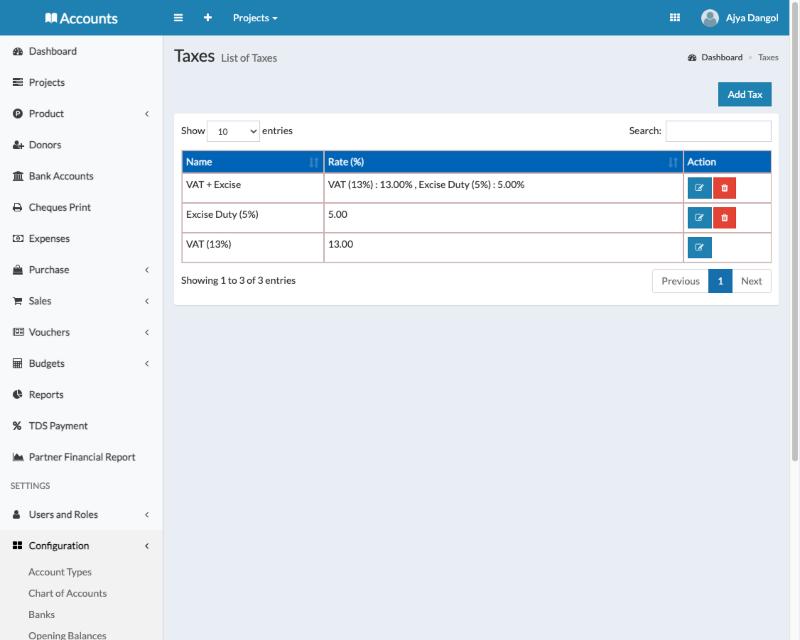
The page shows all taxes with their Name and Rate. A grouped tax shows each of its taxes and rates in the same row. From this page you can:
- View all configured taxes, including grouped and compound taxes.
- Search for a specific tax using Search.
- Sort by any column and change how many rows are shown.
1. Application Settings
- Taxes have no settings of their own in Application Setting.
- The Chart of Accounts list comes from Accounts → Configuration > Chart of Accounts.
- Related setting: Accounts → Preferences → Application Setting → Automatic Voucher Setting (Bill, Payment Made, Debit Notes, Invoice …). When automatic vouchers are on, select the Chart of Accounts on every tax so the tax is posted to the right account.
Permissions
Set in Accounts → Settings → Users and Roles → Roles → Edit Role → Configurations → Tax. Tick the boxes the role needs, then click Update.
| Permission | What the user can do |
|---|---|
| View | See the Taxes list |
| Create | See the Add Tax button and add a tax |
| Edit | See the Edit (pencil) button and change a tax |
| Delete | See the red Delete button and delete a tax that is not used |
| Full Access | Ticks View, Create, Edit and Delete together |
2. Fields
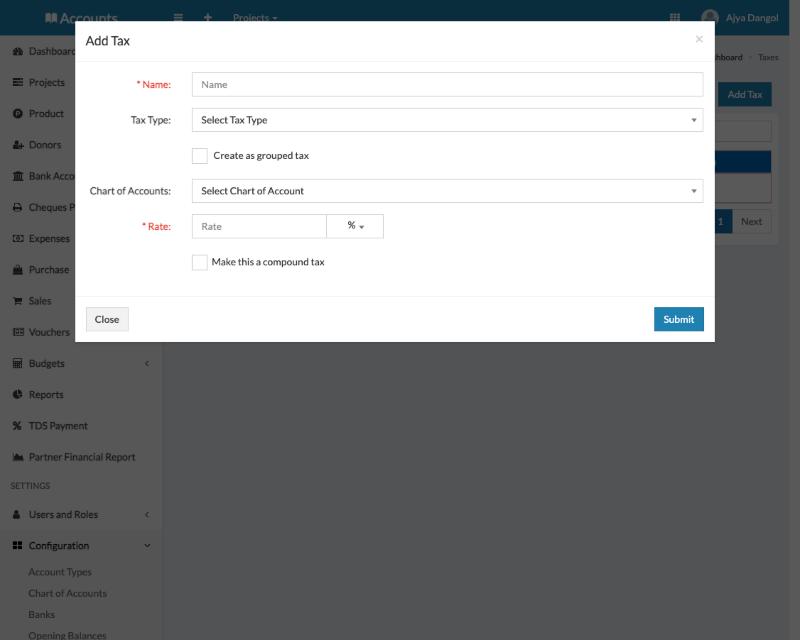
When adding or editing a Tax, the following fields are available.
| Field Name | Description | Required | Remarks |
|---|---|---|---|
| Name | The name of the tax (e.g., VAT 13%, Excise Duty 5%). | Yes | • Must be unique. |
| Tax Type | The category of the tax. | No | • Options: VAT, Excise, Health Service Tax, Education Service Tax, SDF. |
| Chart of Accounts | The account to which the tax amount is posted. | No* | • *Should be selected when automatic vouchers are on, because they post the tax to this account (not yet enforced by the system). • Dropdown populated from Configuration > Chart of Accounts. |
| Rate | The tax rate. | Yes | • Choose % (e.g., 13 for 13%) or Amt for a fixed amount. • Must not be negative. |
| Make this a compound tax | Marks this tax as a compound tax (tax calculated on top of another tax). | No | • Tick box. When ticked, this tax is calculated on the amount after the preceding tax has been applied. |
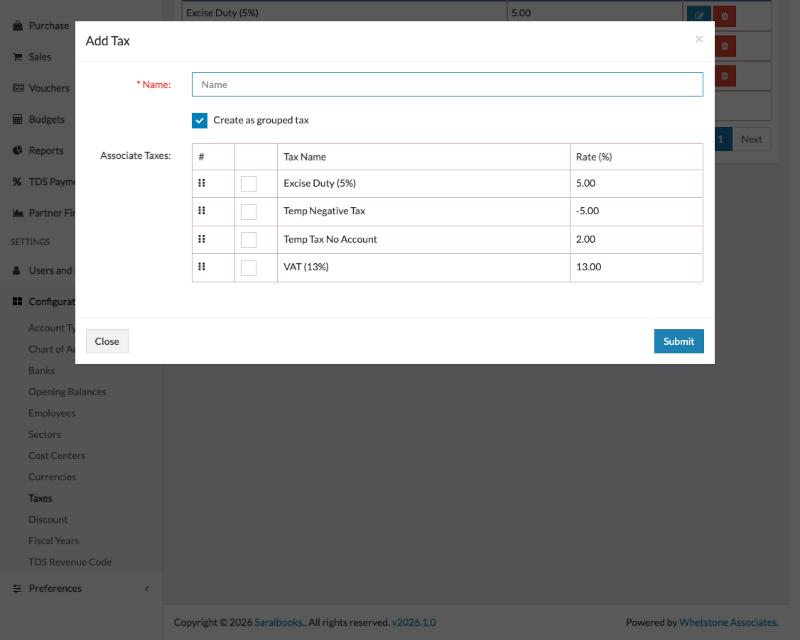
| Create as grouped tax | Marks this tax as a group of individual taxes bundled together. | No | • Tick box. When ticked, the other fields are hidden and Associate Taxes is shown. See Grouped Tax below. |
| Associate Taxes (grouped tax only) | The individual taxes included in this group. | Conditional | • Shows all individual taxes with a tick box and their rate. • Drag the rows to set the order in which they apply. • At least one tax must be ticked. |
Grouped Tax
A Grouped Tax bundles multiple individual taxes into a single selectable tax entry. This simplifies transaction entry when several taxes are commonly applied together.
When Create as grouped tax is ticked:
- Tax Type, Chart of Accounts, Rate and Make this a compound tax are hidden.
- The Associate Taxes table is shown with all individual taxes.
- Tick the taxes to include and drag the rows into the order in which they are applied.
- A Grouped Tax cannot contain another Grouped Tax. Only individual or compound taxes can be included in a group.
Compound Tax
A Compound Tax is calculated on the amount after the preceding tax has already been applied (tax-on-tax). For example, if a product costs Rs. 1,000, a 13% VAT is applied first (Rs. 130), and then a 5% compound excise is calculated on Rs. 1,130 (Rs. 56.50), not on the original Rs. 1,000.
3. Create
- Go to Accounts → Configuration → Taxes.
- Click Add Tax.
- Enter the Name and select the Tax Type.
- Select the account from the Chart of Accounts dropdown.
- Enter the Rate and choose % or Amt.
- If this is a compound tax, tick Make this a compound tax.
- If this is a grouped tax, tick Create as grouped tax, then tick and order the Associate Taxes.
- Click Submit.
Messages you may see
| When | Message |
|---|---|
| Name is empty | The name field is required. |
| Rate is empty | The rate field is required. |
| Name already used | The name has already been taken. |
| Grouped tax with no tax ticked | Please select at least one associate tax. |
4. Edit
- Go to Accounts → Configuration → Taxes.
- Locate the tax to edit.
- Click the Edit (pencil) icon – the form opens as Edit Tax.
- Modify the fields you need.
- Click Update.
- When editing a grouped tax, the tax itself and other grouped taxes are not listed in Associate Taxes. The selected taxes are shown first, in their saved order.
5. Delete
- Go to Accounts → Configuration → Taxes.
- Find the tax you want to remove.
- Click the red Delete button.
- Confirm by clicking OK.
- A Tax cannot be deleted if it has been used in any transaction (Purchase Order, Bill, Invoice, etc.) or if it is included in a Grouped Tax. The message is: “Tax failed to be deleted. It has been already used.”
6. Upload
- Not available. Taxes are added one at a time with Add Tax.
7. Notes
- Taxes are shared by Accounts and Inventory.
- Tax Type and Chart of Accounts are optional on the form. With automatic vouchers on (Application Setting → Automatic Voucher Setting), always select the Chart of Accounts so the tax is posted to the right account.
- A fixed-amount tax (Amt) shows its amount under the Rate (%) column in the list – check the Edit form to see whether a tax is % or Amt.
- Create the individual taxes first, then the grouped taxes that use them.
- Set the order of a grouped tax carefully when it contains a compound tax – the compound tax is calculated on the amount after the taxes before it.
- NGO/INGO and Corporate: Taxes works the same in both.
- Name each tax with its rate (e.g., VAT 13%) so it is easy to pick in transactions.