Sectors
Where to find itAccounts → Configuration → Sectors
Sectors are used to classify and track financial transactions by thematic or programmatic areas. They support a parent-child hierarchy, allowing organisations to define broad sectors with detailed sub-sectors underneath. Sectors are used in budget tracking, expense classification, and reporting.
You can manage Sectors from the path: Accounts → Configuration → Sectors
- Sectors are available for organisations registered as NGO or INGO (as set in Organization Settings → Organisation Type). If your organisation is an NGO or INGO and you do not see Sectors in the left navigation, please contact Saralbooks support.
List / View Sectors
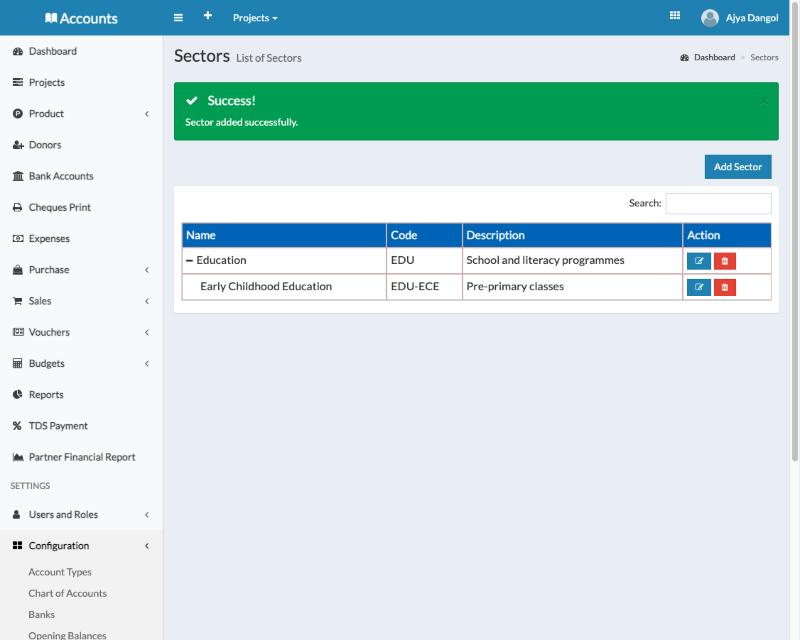
The system displays all existing Sectors in a hierarchical view. From this page you can:
- View all configured Sectors with their codes.
- Expand (+) or collapse (–) a parent sector to show or hide its sub-sectors.
- Edit (pencil) or delete (red button) a sector.
1. Application Settings
Sectors have no settings of their own in Application Setting.
Permissions
Set in Accounts → Settings → Users and Roles → Roles → Edit Role → Configurations → Sector. Tick the boxes the role needs, then click Update.
| Permission | What the user can do |
|---|---|
| View | See the Sectors list |
| Create | See Add Sector and add a sector |
| Edit | See the Edit (pencil) button and change a sector |
| Delete | See the red Delete button and delete an unused sector |
| Full Access | Ticks View, Create, Edit and Delete together |
2. Fields
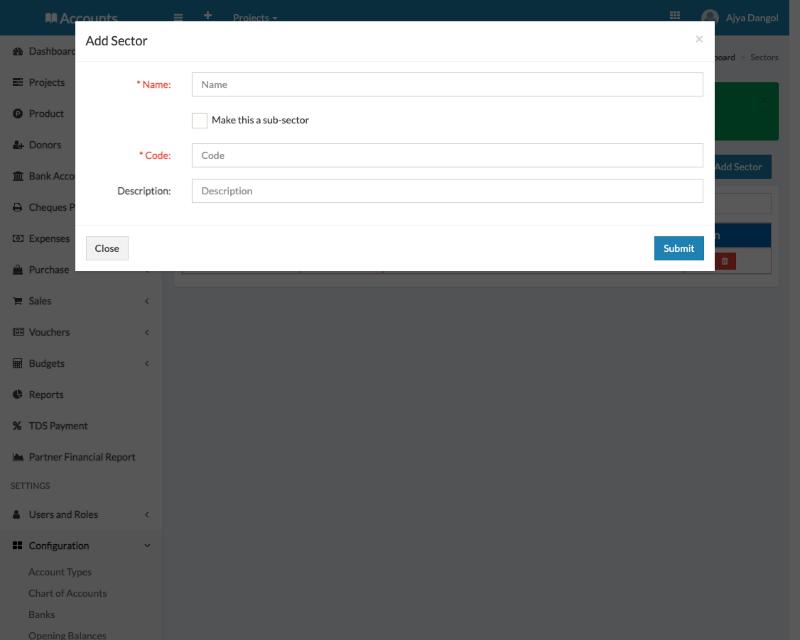
When adding or editing a Sector, the following fields are available.
| Field Name | Description | Required | Remarks |
|---|---|---|---|
| Name | The name of the sector (e.g., Education, Health, Livelihood). | Yes | • Must be unique. |
| Make this a sub-sector | Tick to place this sector under another sector. | No | • Shown once at least one sector exists. • When ticked, Parent Sector is shown. |
| Parent Sector | The sector this sub-sector is grouped under. Shown on screen as “Parent Activities”. | Conditional | • Required when Make this a sub-sector is ticked. • Lists existing sectors (Code - Name). |
| Code | A short code identifying this sector (e.g., EDU). | Yes | • Must be unique. |
| Description | Additional notes or explanation for this sector. | No |
3. Create
- Go to Accounts → Configuration → Sectors.
- Click Add Sector.
- Enter the Name.
- For a sub-sector, tick Make this a sub-sector and select the Parent Sector.
- Enter the Code and, if needed, a Description.
- Click Submit.
Messages you may see
| When | Message |
|---|---|
| Name or Code is empty | The name field is required. / The code field is required. |
| Sub-sector without a parent | The activity id field is required. |
| Name or Code already used (capital and small letters count as the same) | The name has already been taken. / The code has already been taken. |
4. Edit
- Go to Accounts → Configuration → Sectors.
- Click the Edit (pencil) button on the sector you want to update.
- Modify the required fields.
- Click Update.
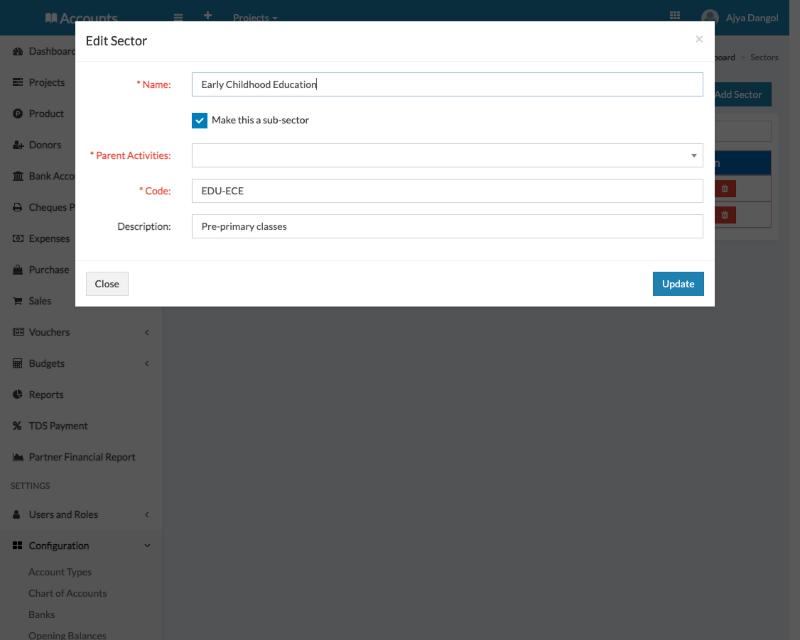
- Editing a sub-sector is not working at the moment: the Parent Sector box is empty and cannot be filled, so Update fails. Delete and re-create the sub-sector if needed (only when it is not used in any transaction).
5. Delete
- Go to Accounts → Configuration → Sectors.
- Find the sector you want to remove.
- Click the red Delete button.
- Confirm by clicking OK on “Are you sure you want to delete?”.
- A Sector cannot be deleted if it has been used in any transaction (voucher, budget, expense) or if it has sub-sectors assigned to it. The system shows: “Sector failed to be deleted. It may have child sectors or may already been used in transaction.”
6. Upload
- Not available. Sectors are added one at a time with Add Sector.
7. Notes
- Plan the sector list with your programme team first: broad sectors (Education, Health) with sub-sectors under them.
- Use short, stable codes – they appear in reports.
- Search on this page does not filter the list at the moment; use collapse (–) to shorten long lists.
- NGO/INGO only: Sectors are not shown for Corporate organisations.