Account Types
Where to find itAccounts → Configuration → Account Types
Account Types define the specific classification of accounts within each Account Type Category. They determine how accounts behave in the system — whether they represent bank accounts, cash accounts, receivables, payables, advances, or asset accounts — and which contact types are required when transacting against them.
You can manage Account Types from the path: Accounts → Configuration → Account Types
List / View Account Types
The system displays all existing Account Types with their Code, Name, Account Type Category and Description. From this page you can:
- View all configured Account Types.
- Search for a specific Account Type using the search option.
- Sort by any column and change how many rows are shown.
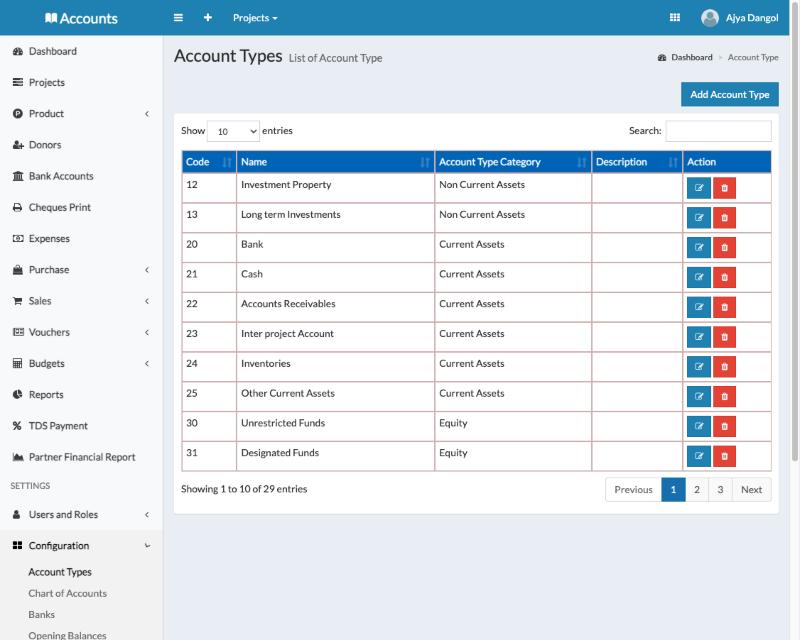
- The system comes with a set of Account Types already created (for example Bank, Cash, Accounts Receivables, Accounts Payable, Staff Costs). Review them before adding your own.
1. Application Settings
- There are no Account Type settings in Accounts → Preferences → Application Setting.
- Account Type Categories (the groups such as Current Assets or Expense) are managed by the Super Admin.
Permissions
Set in Accounts → Settings → Users and Roles → Roles → Edit Role → Accounts → Account Type. Tick the boxes the role needs, then click Update.
| Permission | What the user can do |
|---|---|
| View | See the Account Types list |
| Create | See the Add Account Type button and add an account type |
| Edit | See the Edit (pencil) button and change an account type |
| Delete | See the red Delete button and delete an account type that is not used |
| Full Access | Ticks View, Create, Edit and Delete together |
2. Fields
When adding or editing an Account Type, the following fields are available.
| Field Name | Description | Required | Remarks |
|---|---|---|---|
| Account Type Category | The parent classification group this type belongs to. | Yes | • Non Current Assets, Current Assets, Equity, Non Current Liability, Current Liability, Revenue, Expense. |
| Name | The descriptive name of the account type (e.g., Bank, Cash, Accounts Payable, Fixed Assets). | Yes | • Must be unique. |
| Account Type Code | A short code identifying this account type. | Yes | • Must be unique. |
| Is a/n | Specifies the functional nature of the account type. | No | • None, Bank, Cash, Advance, Payable, Receivable, Fixed asset, Project. • See the reference below. |
| Types | The contact categories required when transacting on accounts of this type. | Conditional | • Donor, Client, Supplier, Employee – tick one or more. • Shown and required only when Is a/n is Advance, Payable or Receivable. |
| Description | Additional notes or explanation for this account type. | No |
Is a/n reference
| Value | Behaviour | Remarks |
|---|---|---|
| Bank | All Bank Accounts created in Bank Accounts are automatically listed under this Account Type as Chart of Accounts entries. | Only one account type can be Bank. |
| Cash | Identifies cash accounts. Enables cash-based contact validation rules during voucher entry. | |
| Advance | Tracks advance balances. Types becomes visible and required. | |
| Payable | Tracks payable balances. Types becomes visible and required. | |
| Receivable | Tracks receivable balances. Types becomes visible and required. | |
| Fixed asset | Identifies Chart of Accounts entries as fixed-asset-related so line items in bills can be tagged as asset acquisitions for the Fixed Assets module. | |
| Project | All Projects created in Projects automatically generate a corresponding Chart of Accounts entry under this classification. | NGO and INGO only. Only one account type can be Project. |
3. Create
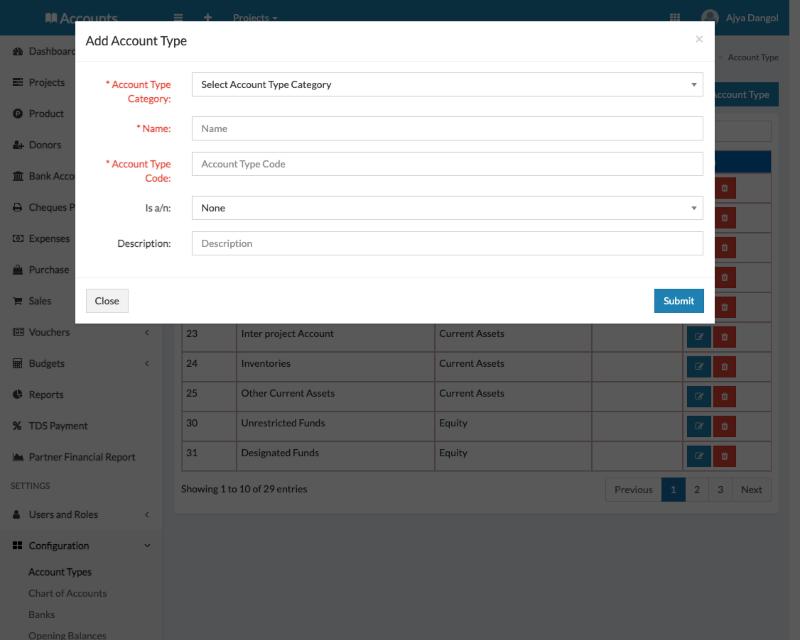
- Go to Accounts → Configuration → Account Types.
- Click Add Account Type.
- Select the Account Type Category from the dropdown.
- Enter the Name and Account Type Code.
- Set the Is a/n classification if applicable.
- If Is a/n is Advance, Payable, or Receivable, tick the required Types.
- Click Submit.
Messages you may see
| When | Message |
|---|---|
| Account Type Category is empty | The account type category id field is required. |
| Name is empty | The name field is required. |
| Account Type Code is empty | The code field is required. |
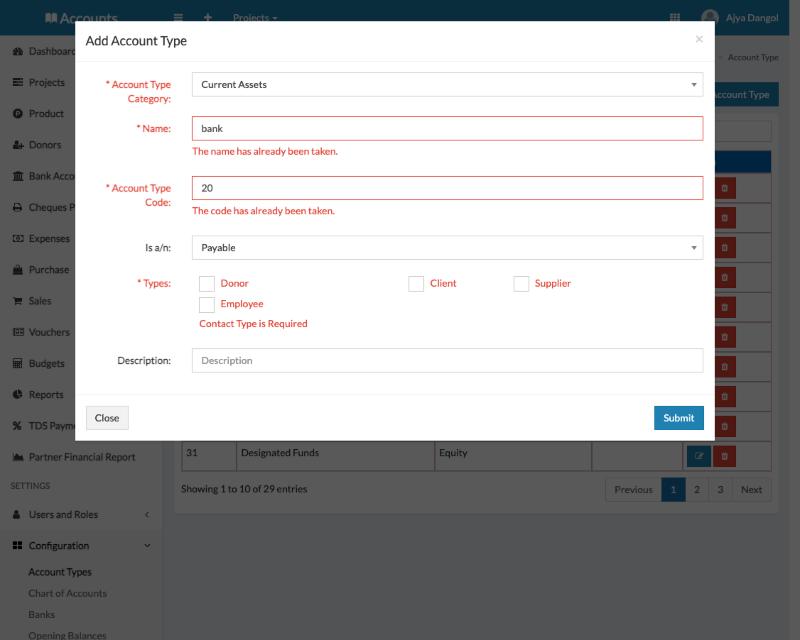
| Name already used | The name has already been taken. |
| Account Type Code already used | The code has already been taken. |
| No Types ticked for Advance, Payable or Receivable | Contact Type is Required |
| Another account type is already Bank | Bank has already been used in another account type |
| Another account type is already Project | Project has already been used in another account type |
4. Edit
- Go to Accounts → Configuration → Account Types.
- Click the Edit (pencil) button on the Account Type you want to update.
- Modify the required fields.
- Click Update.
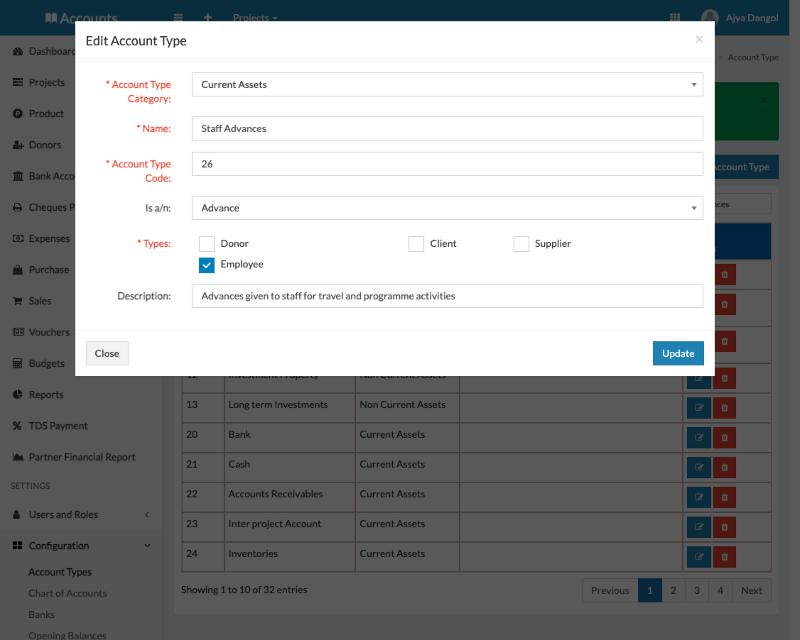
- Changes will reflect across all Chart of Accounts entries linked to this Account Type.
5. Delete
- Go to Accounts → Configuration → Account Types.
- Find the Account Type you want to remove.
- Click the red Delete button.
- Confirm by clicking OK on “Are you sure you want to delete?”.
- An Account Type cannot be deleted if it has one or more Chart of Accounts entries assigned to it.
6. Upload
- Not available. Account Types are added one at a time with Add Account Type.
7. Notes
- Review the Account Types that come with the system before adding new ones – most organisations only need a few extra types (for example Staff Advances).
- Use Is a/n only where it applies: Bank, Cash, Advance, Payable, Receivable, Fixed asset. The Project type is used by Projects.
- Pick the Types carefully for Advance, Payable and Receivable – vouchers on these accounts will ask for a contact of that type.
- NGO/INGO and Corporate: Account Types work the same in both. The Project option applies to NGO and INGO organisations only.