Cost Centers
Where to find itAccounts → Configuration → Cost Centers
Cost Centers are used to track and allocate expenses to specific organisational units, departments, or functional areas. They provide an additional dimension for financial analysis and reporting beyond the standard Chart of Accounts structure.
You can manage Cost Centers from the path: Accounts → Configuration → Cost Centers
Note
- Cost Centers are available for organisations registered as NGO or INGO (as set in Organization Settings → Organisation Type). If your organisation is an NGO or INGO and you do not see Cost Centers in the left navigation, please contact Saralbooks support.
List / View Cost Centers
The system displays all existing Cost Centers. From this page you can:
- View all configured Cost Centers.
- Sort by a column, choose how many rows to show and move between pages.
- Edit (pencil) or delete (red button) a cost center.
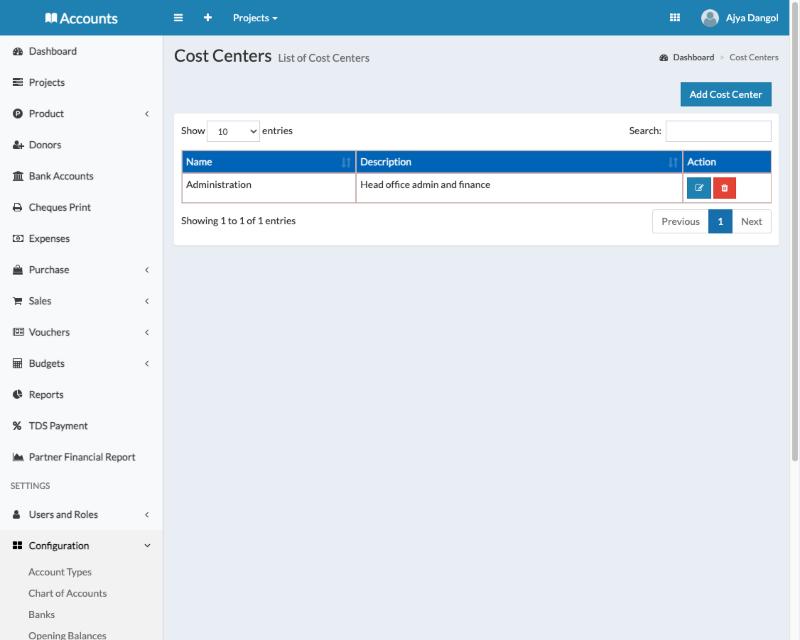
1. Application Settings
Cost Centers have no settings of their own in Application Setting.
Permissions
Set in Accounts → Settings → Users and Roles → Roles → Edit Role → Configurations → Cost Center. Tick the boxes the role needs, then click Update.
| Permission | What the user can do |
|---|---|
| View | See the Cost Centers list |
| Create | See Add Cost Center and add a cost center |
| Edit | See the Edit (pencil) button and change a cost center |
| Delete | See the red Delete button and delete an unused cost center |
| Full Access | Ticks View, Create, Edit and Delete together |
2. Fields
When adding or editing a Cost Center, the following fields are available.
| Field Name | Description | Required | Remarks |
|---|---|---|---|
| Name | The name of the cost center (e.g., Administration, Field Office, Program Support). | Yes | • Must be unique. |
| Description | Additional notes or explanation for this cost center. | No |
3. Create
- Go to Accounts → Configuration → Cost Centers.
- Click Add Cost Center.
- Enter the Name.
- Add a Description if needed.
- Click Submit.
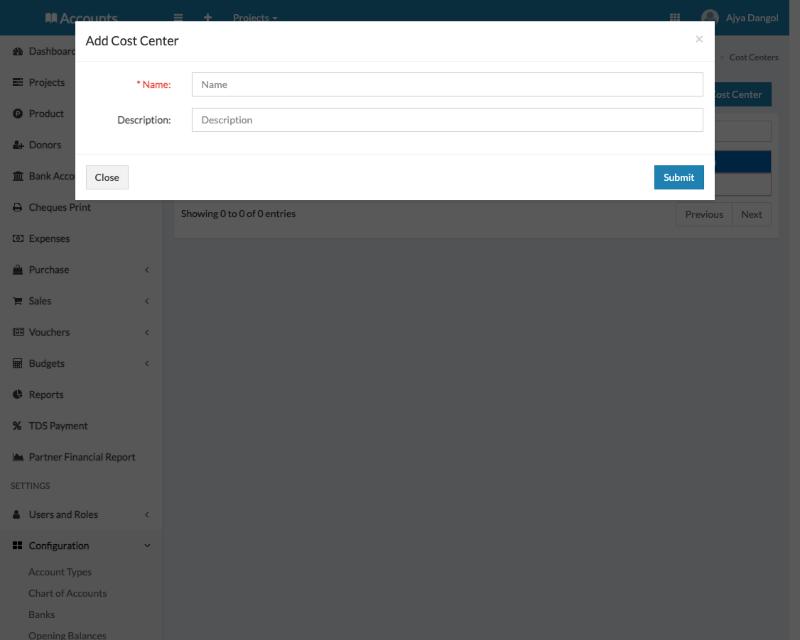
Success: “Cost Center added successfully.”
Messages you may see
| When | Message |
|---|---|
| Name is empty | The name field is required. |
| Name already used (capital and small letters count as the same) | The name has already been taken. |
4. Edit
- Go to Accounts → Configuration → Cost Centers.
- Click the Edit (pencil) button on the cost center you want to update.
- Modify the required fields.
- Click Update.
Success: “Cost Center updated successfully.” Changes reflect across all transactions and reports linked to this cost center.
5. Delete
- Go to Accounts → Configuration → Cost Centers.
- Find the cost center you want to remove.
- Click the red Delete button.
- Confirm by clicking OK on “Are you sure you want to delete?”.
Success: “Cost Center deleted successfully” – the cost center is removed from the list.
Note
- A Cost Center cannot be deleted if it has been used in any transaction (voucher, budget, expense).
6. Upload
- Not available. Cost Centers are added one at a time with Add Cost Center.
7. Notes
- Keep the list short and stable – Cost Centers are a reporting dimension next to Sectors and the Chart of Accounts.
- Search on this page does not filter the list at the moment; sort by Name instead.
- NGO/INGO only: Cost Centers are not shown for Corporate organisations.